
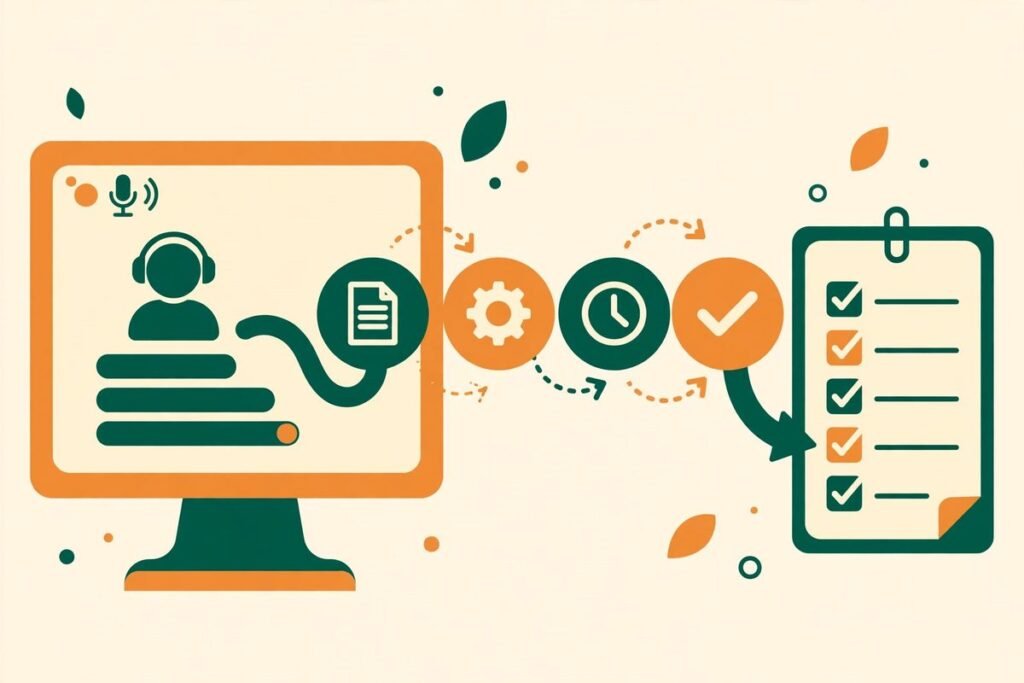
If you could record work into AI agent skill form once and then hand that task to an agent forever, the economics of automation would change for most small teams. That is exactly the bet behind Microsoft’s Skill Recorder, an open-source desktop app that watches you do a job on screen, reconstructs what you did as an intent plus an ordered list of steps, and turns that single demonstration into a reusable skill or a scheduled automation. At the time of writing it has 5,576 stars and 638 forks on GitHub, it is written in TypeScript, and it is MIT-licensed. This deep-dive explains what it does, where it helps, and where to be cautious.
What Skill Recorder is
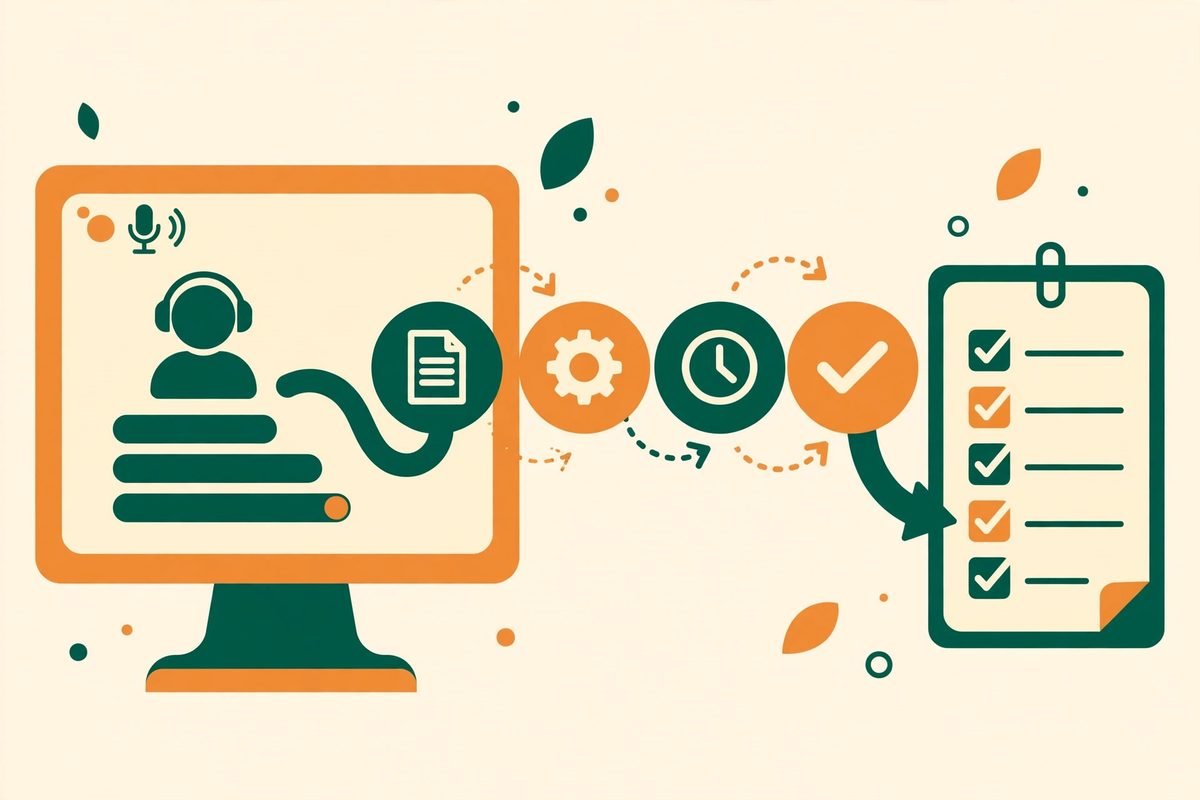
Skill Recorder is a desktop application from Microsoft that captures a real work session on your screen: the clicks, the app and window switches, the pages you visit, commands and output from its optional recorded terminal, and, if you enable it, your spoken narration. When you finish, you press Analyze and the GitHub Copilot CLI reconstructs what you did as one overall intent and an ordered list of steps. You review and edit that reconstruction until it reads correctly, and then you generate either a skill — a SKILL.md procedure an agent runs on demand — or an automation, the same procedure running on a schedule or a trigger.
The targets named in the project are Microsoft’s agent surfaces: Scout, Microsoft Copilot Cowork, and Copilot Studio. If you want to browse the source, the project lives at microsoft/skill-recorder on GitHub.
What it can do
Skill Recorder’s feature set is narrower than a general automation platform, and that focus is a strength. Here is what it actually offers, taken from the project’s own documentation:
- One-click recording, anywhere. Hit record, or press Cmd+Shift+R on macOS and Ctrl+Shift+R on Windows, and just do your task. A small always-on-top bar shows capture, microphone, and recorded-terminal state while you work.
- Session-scoped terminal capture. Open a terminal from the floating recording bar and its commands, working directory, shell, exit status, duration, and complete output are captured for that session only. It does not hook your existing terminals or monitor commands in the background.
- Optional spoken narration. Narrate as you work and the narration is transcribed on your device using Whisper, in any of its 99 supported languages. The first use downloads a model of roughly 252 MB.
- Copilot-powered analysis. The GitHub Copilot CLI turns the captured timeline into an intent and ordered steps that you can review and edit before anything is generated.
- Skill and automation generation. From an approved analysis, generate a reusable skill, a scheduled automation, or both. A Review SKILL.md view shows the complete generated file, including its frontmatter, before you install or export it.
- Local-first capture. Recording, storage, frame extraction, and narration transcription all happen on your computer. Nothing leaves the machine while you record; data is sent to GitHub’s cloud only when you choose Analyze.
How to record work into AI agent skill form
The workflow has four stages, and the second one — review — is where most of the value is created. Skipping it is how teams end up with skills that encode a one-off workaround as if it were policy.
1. Record one clean run
Install the app from the project’s latest release page, grant Screen Recording permission on first launch, and then do the task exactly as you would want a colleague to do it. Keep the run clean: close unrelated tabs, do not paste secrets, and narrate decisions that are not visible on screen, such as why you skipped a record. A tidy demonstration produces a tidy skill.
2. Analyze with Copilot
Press Analyze. The first time, Skill Recorder offers sign-in to Copilot if you are not signed in; you finish authorisation in your browser and the app retries the interrupted analysis automatically. You need a GitHub account with Copilot access, and the app pins Copilot CLI version 1.0.78, which supports web-based OAuth without a terminal. The analysis returns one intent and an ordered list of steps.
3. Review and edit the plan
This is the step that separates a useful skill from a liability. Read the reconstructed steps as if a new hire were going to follow them unsupervised. Fix anything that is specific to your one example — a date, a customer name, a temporary workaround — and generalise it into a rule. Confirm that the plan uses native tools and APIs where they exist rather than brittle UI steps. Only when the plan reads correctly should you generate the skill.
4. Create the skill or automation
From the approved analysis, generate a skill for on-demand use, or an automation for scheduled or triggered runs. Use the Review SKILL.md view to read the complete file before installing or exporting it. Preparing a preview writes no skill files, so you can inspect first and commit second.
Why it is trending
Skill Recorder arrives at the exact moment agent skills have become the bottleneck. The last year produced a flood of skill collections, plugin marketplaces, and agent harnesses — many of which we have covered in this series — but almost all of them assume someone already wrote the skill down. Writing a good skill is slow, expert work: you have to notice what the expert actually does, separate the essential steps from the accidental ones, and phrase the result so an agent can follow it reliably. Most teams never get past that first step, so their agents stay generic.
Recording flips the problem. The expert does not have to write anything; they just do the job once, while the tool does the noticing. That is why a Microsoft project in this space drew thousands of stars within months of its July 2026 creation: it promises to turn the tacit knowledge sitting in senior staff’s heads into an asset the whole team can reuse, without asking those senior people to become technical writers. For agencies and operations teams, the timing also fits: clients increasingly ask not just for a website or an app, but for workflows their own staff and agents can run after handover.
From our experience: where this helps, and where it does not
At MTD Technologies we build AI integration and automation for clients, and our honest read is that Skill Recorder is best at one specific job: capturing repeatable, well-understood operational tasks performed by one expert. Think weekly reporting routines, standard onboarding checklists, content publishing steps, or the triage sequence a support lead runs every morning. Record once, review carefully, and you have removed a recurring half-hour from someone’s week.
It is weaker in three places. First, judgement-heavy work does not record well: if the expert’s real skill is deciding which cases are exceptions, a single demonstration will either miss the exceptions or encode one exception as the rule. Second, tasks that span systems with fragile logins or two-factor prompts will produce skills that stall at exactly the step a human handles by improvising. Third, the review step is not optional, and teams that skip it will ship skills that look authoritative and are subtly wrong — the worst kind of automation, because it fails confidently and at scale.
Cost is the other reality check. The app itself is free and open source, but analysis requires Copilot access, and generated skills still consume model calls on every run. Measure the first month: runs completed without intervention, time saved, and cost per run. Automate the tasks that pass that test, and leave the rest as documented checklists.
Responsible-use note: what leaves your machine, and what must never be recorded
Skill Recorder’s privacy story is better than most screen tools, but it has a sharp edge you must brief your team on. Recording, storage, frame extraction, and narration transcription happen on your computer, and nothing leaves while you record. The moment you choose Analyze, however, the event timeline, extracted screen images, narration text, and bounded terminal-output excerpts are sent to GitHub’s cloud for Copilot to process.
The project’s own warning is blunt and we repeat it: do not record, type, paste, or narrate passwords, tokens, API keys, or other confidential information during a session. Record with a test account and redacted data, never a live production session with real customer data on screen. If a recording does capture something sensitive, discard the session rather than analysing it.
Getting started
- Open the latest Skill Recorder release and copy the complete commit-pinned installation command for your operating system — macOS is the primary target, Windows 11 and Ubuntu are also supported. Do not paste a template command with a placeholder version in it, and do not treat the source-code zip as an installer.
- Paste the command into Terminal or PowerShell and keep the window open while it downloads a pinned Node.js runtime, builds the exact release commit on your machine, and adds a Skill Recorder app you can relaunch any time. Nothing is installed globally, and the first installation can take several minutes.
- Grant Screen Recording permission on first launch, then sign in to Copilot when the app offers it, finishing authorisation in your browser with the same profile you use for GitHub.
- Record one clean, secret-free run of a task you actually repeat, narrating the decisions that are not visible on screen.
- Analyze, then review and edit the intent and steps until they read as a general procedure, not a diary of one afternoon.
- Preview the generated SKILL.md, install or export it, and run it supervised three times before you schedule it unattended.
Developers who want to hack on the code need Node.js 24 and can follow the manual setup in the project’s documentation, but most business users should stick to the release installer. Browse our AI tools directory for related agent tooling, and talk to us if you want help turning a recorded workflow into a production automation with proper review gates.
Frequently asked questions
What does Skill Recorder actually record?
Your on-screen session: clicks, app and window switches, pages visited, commands and output from its session-scoped terminal, clipboard previews that tie steps together, and optional spoken narration transcribed on your device. Everything is stored locally until you choose Analyze.
Do I need a Copilot subscription to use it?
Yes, for the analysis step. You need a GitHub account with Copilot access; the app uses the GitHub Copilot CLI to reconstruct your session into an intent and steps. Recording itself is local, but turning a recording into a skill requires that Copilot step.
Is my screen recording sent to the cloud?
Not while you record — capture and transcription stay on your computer. When you press Analyze, the event timeline, extracted screen images, narration text, and bounded terminal excerpts are sent to GitHub’s cloud for Copilot to process. Never record secrets, tokens, or real customer data.
Should I create a skill or an automation?
Start with a skill. A skill runs on demand and is easy to supervise, correct, and improve. Turn it into a scheduled automation only after it has completed several supervised runs without intervention and you have reviewed its edge cases.
What platforms does Skill Recorder run on?
macOS is the primary target, with Windows 11 (x64 and ARM64) and Ubuntu also supported. It is published as a source release: the installer builds the pinned release commit on your machine rather than installing a global binary.
Skill Recorder will not replace good process design, and it will not turn a bad workflow into a good one — it will faithfully automate whichever workflow you demonstrate. Used with discipline, though, it solves the hardest part of agent adoption: getting expert knowledge out of one person’s head and into a procedure the whole team can run. Record one task this week, review the skill properly, and you will know within a month whether this belongs in your automation toolkit.