
Every WordPress developer has a story about a site that broke on a Tuesday morning for no apparent reason. The checkout button stopped working, the homepage went blank, or the editor threw a fatal error — and the only thing that changed was an overnight plugin update. A reliable wordpress plugin conflict fix process is what separates developers who panic from developers who resolve it before the client notices.
This guide walks through the exact workflow we use at MTD when a client’s WordPress site starts misbehaving after a plugin install or update. No magic — just a disciplined process that finds the culprit fast without risking the live site.
What a plugin conflict actually is
A conflict happens when two plugins (or a plugin and the theme) make incompatible assumptions about the same thing. The classic causes:
- Function collisions — two plugins declaring the same PHP function name, producing a fatal “cannot redeclare” error.
- Hook and filter clashes — two plugins hooking into the same action with conflicting priorities, or one stripping markup the other needs.
- JavaScript and CSS wars — two plugins loading different versions of jQuery or their own CSS frameworks, breaking sliders, popups, forms, and the block editor.
- Database or option fights — plugins overwriting each other’s options or custom tables during migrations.
Symptoms range from the dramatic — the infamous white screen of death — to the subtle: a form that silently stops submitting, admin pages missing menu items, or pages loading twice as slowly. As one developer guide puts it, “if something was working perfectly yesterday and suddenly isn’t, a plugin conflict is usually the culprit” — which matches our experience exactly. The practitioner walkthrough on dev.to catalogues the same symptom list we see in the field.
Step 1: Enable WP_DEBUG before touching anything
WordPress hides PHP errors on production by default. Your first move is to make them visible — to you, not to visitors. Edit wp-config.php (via FTP or your host’s file manager) and add, above the “stop editing” line:
define('WP_DEBUG', true);
define('WP_DEBUG_LOG', true);
define('WP_DEBUG_DISPLAY', false);
Reload the broken page. With logging on, the fatal error will usually name the exact file — often something like /wp-content/plugins/some-plugin/includes/core.php — which hands you the culprit on a plate. If the screen is still blank, open wp-content/debug.log and read the latest entries. The step-by-step guide from Matrix Internet explains this well: the error message typically names the plugin file responsible, letting you skip straight to dealing with that plugin. Turn debug mode back off when you’re done — error messages visible to visitors are a security risk.
Step 2: Isolate the culprit without downtime
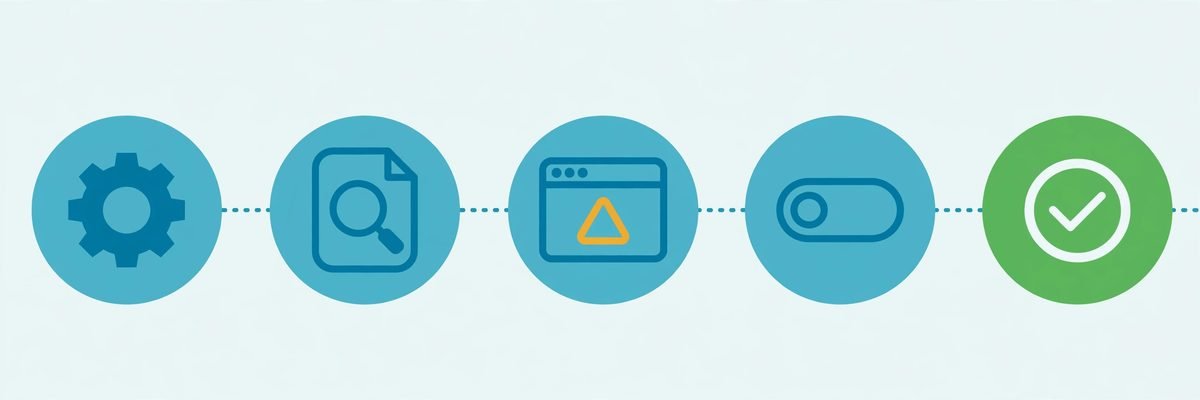
If the debug log doesn’t name a plugin, it’s time for divide and conquer. The standard procedure:
- Back up first. Files and database. Always. Debugging on a live site without a backup is how small problems become disasters.
- Deactivate all plugins. In wp-admin, select all → Deactivate. If you can’t reach wp-admin, rename
wp-content/pluginstoplugins-disabledvia FTP — WordPress then loads with zero plugins active. - Confirm the site works. If the problem is gone, a plugin is confirmed as the cause. If it persists with everything off, the issue is the theme or core, not a plugin conflict.
- Reactivate one at a time, checking the site after each. When the problem returns, you’ve found your culprit.
Two hard-won tips from doing this hundreds of times. First, if the breakage appeared right after a batch update, start by deactivating the most recently updated plugins — you’ll usually find the cause in two or three tries instead of twenty. Second, never do this dance on the live site if you can avoid it: clone to a staging environment and debug there. Your visitors should never see a half-disassembled website.
Step 3: Fix it properly — don’t just delete and hope
Finding the guilty plugin is half the job. The other half is fixing the conflict so it doesn’t come back next update. In order of preference:
- Check for an update first. The conflict may already be fixed upstream — plugin authors ship compatibility fixes constantly.
- Read the support forum and changelog. Search for the other plugin’s name in the culprit’s support threads. If dozens of people report the same clash, the author probably knows.
- Look at the hooks. For code-level conflicts, tools like Query Monitor show you which plugin enqueues which scripts, which hooks fire, and where PHP errors originate — invaluable for JavaScript collisions and duplicate hook callbacks.
- Roll back the update. If the conflict started with a specific update and no fix exists yet, reverting with a tool like WP Rollback buys you time while the author patches it. Pin that version and re-test on the next release.
- Replace, don’t tolerate. If a plugin keeps conflicting and the author is unresponsive, swap it for a better-maintained alternative. A plugin that breaks your stack twice is a liability, not a tool.
What you should not do: edit the plugin’s files directly to “fix” the clash. Your edit gets wiped on the next update, and now you’ve forked yourself into a maintenance nightmare. If the fix genuinely belongs in the plugin, submit it to the author — and in the meantime, handle it from your own code with a must-use plugin or the theme’s functions, never by patching someone else’s package.
Preventing the next conflict
Debugging is reactive; the real win is a process that makes conflicts rare and harmless:
- Staging for every update. Run plugin updates on a staging copy first, click through the critical paths (checkout, forms, login), then push to production. This one habit prevents the vast majority of conflict emergencies.
- Update one plugin at a time and verify between updates, so you always know exactly which change broke something.
- Fewer, better plugins. Audit your stack quarterly. Every plugin you don’t need is a conflict you don’t have — and one fewer attack surface.
- Vet before installing. Check active installs, update recency, support responsiveness, and WordPress version compatibility. An abandoned plugin is a future conflict waiting to happen.
If your business site runs a complex plugin stack — memberships, bookings, e-commerce, custom integrations — conflict triage becomes a recurring cost. That’s exactly when it pays to have developers who know the stack. Our WordPress plugin development team builds and maintains custom plugins designed to coexist cleanly with your existing setup, and our web development retainers include update management with staging-tested rollouts.
Frequently asked questions
How do I find which plugin is causing a conflict?
Enable WP_DEBUG and check wp-content/debug.log — the fatal error often names the exact plugin file. If it doesn’t, deactivate all plugins and reactivate them one by one until the problem returns. The last one activated is your culprit.
What is the WordPress white screen of death and how do I fix it?
It’s a blank page with no error text, usually caused by a plugin or theme conflict, a fatal PHP error, or an exhausted memory limit. The fastest recovery: rename the wp-content/plugins folder via FTP to deactivate everything at once, then restore it and reactivate plugins one at a time. A recent roundup of common WordPress errors confirms plugin and theme conflicts as the most frequent cause of this exact symptom.
Can two plugins break each other without showing any error?
Yes — JavaScript and CSS conflicts rarely produce visible errors. Two plugins loading incompatible script versions can silently break sliders, checkout buttons, or the block editor. Open your browser’s developer tools (F12), check the Console tab for script errors, and use Query Monitor to see which plugin enqueues what.
Should I test plugin updates on a staging site first?
Absolutely. Staging-first updates are the single most effective conflict prevention. Test the update on a copy of your site, click through your critical pages, and only then update production. Most hosts offer one-click staging — if yours doesn’t, a local tool like LocalWP works too.
Plugin conflicts are inevitable on a mature WordPress site — but with debug logging, disciplined isolation, and staging-tested updates, they’re a twenty-minute annoyance instead of a day-long emergency. And if your stack has grown to the point where every update feels like defusing something, talk to us — we’d rather set up a boring, reliable update process for you than meet during your next outage.